SigProfilerPlotting Installation Guide
Prerequisites
SigProfilerPlotting requires that you have:
- Internet Connection
- Python version 3.4.0 or newer
- SigProfilerMatrixGenerator (recommended)
Mac/Unix
Check that you have the required python version by opening Terminal (⌘ + Space type terminal and hit return to open the application) and entering the command:
python3 --version
You should see an output similar to:
~ python3 --version
Python 3.4.0
If you do not get a similar output (or a version that is 3.4.0 or newer), you will need to install python3 before continuing with this guide.
Next you will want to make sure that you have pip3 installed because it will be used for importing sigProfilerPlotting. Check that you have pip3 installed by entering into terminal:
pip3 --version
You should see an output similar to:
~ pip3 --version
pip 19.0.1 /Library/Frameworks/SomeFilePath/
If you do not have pip3 installed, then follow homebrew's guide for installing pip.
Next, use pip3 to download SigProfilerPlotting.
pip3 install sigProfilerPlotting
You can check that the installation was successful by entering into Terminal:
pip3 list
This command will output a list of libraries that you have access to. Matplotlib and sigProfilerPlotting should be two of the libraries listed.
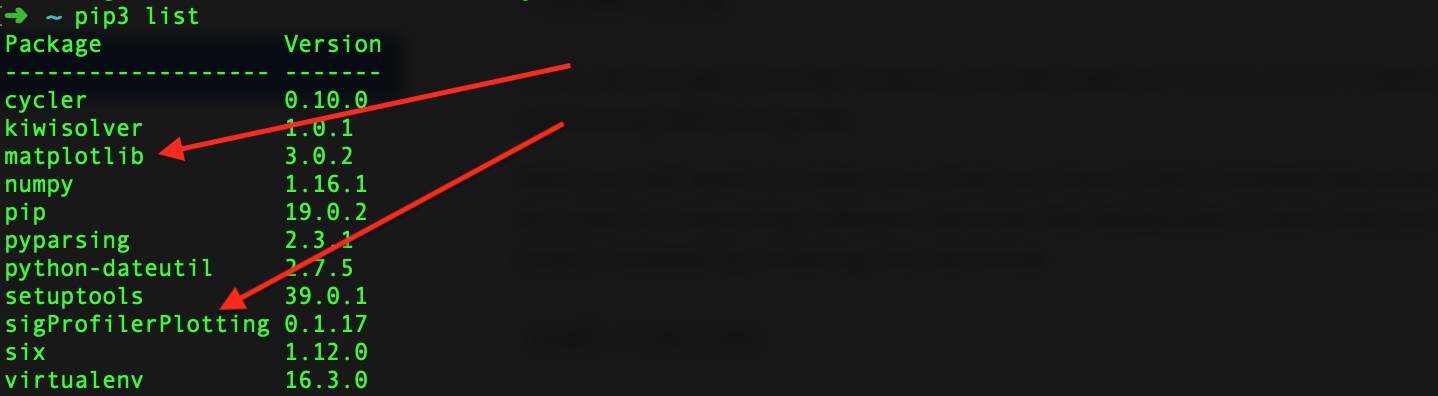
If the download fails or you receive an error, check to make sure that python3 and pip3 are installed by using the --version commands. If they are not, start from the beginning of the guide and follow the directions again to download them.
Windows
First, start by opening up Command Prompt. Navigate to the search bar in the lower left hand corner of the screen and search cmd and open the application Command Prompt.
Next, you will download and install Python and Pip. Check if Python is installed by entering the command:
python --version
If you have Python installed, you should receive an output similar to:
C:\Users\YourUserName>python
Python 3.7.3 (v3.7.3:ef4ec6ed12, Mar 25 2019, 22:22:05) [MSC v.1916 64 bit (AMD64)] on win32
Type "help", "copyright", "credits" or "license" for more information.
>>>
If you do not have python, or need Python 3.4.0 or newer, then download Python here.
After downloading and installing Python, fill in your username at YourUsernameHere and run:
setx PATH “%PATH%;C:\Users\YourUsernameHere\AppData\Local\Programs\Python\Python37\”
setx PATH “%PATH%;C:\Users\YourUsernameHere\AppData\Local\Programs\Python\Python37\Scripts\”
This will set the path so that you can call Python and pip from the command line.
Check that you have the required libraries installed by entering into the command line:
python --version
pip --version
If you both commands output version numbers, then you have successfully downloaded and installed Python and pip and you are ready to proceed. Otherwise, go through the process of reinstalling Python and pip.
Now that your environment is ready, use pip to install sigProfilerPlotting.
pip install sigProfilerPlotting
If the download was successful, then sigProfilerPlotting should be one of the libraries outputted by the following command.
pip list
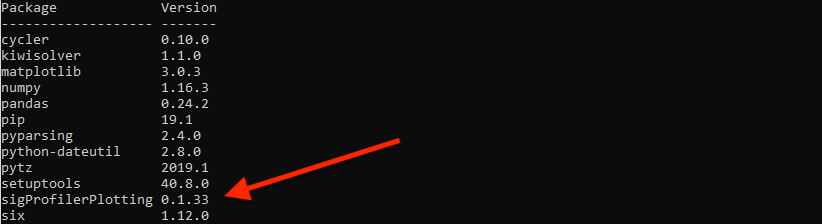
Now your environment should be setup and ready to use the sigProfilerPlotting library.
If you are receiving an error, check to make sure that python and pip are installed by using the --version commands. If they are not installed, start from the beginning of the guide and follow the directions again to download them.
Note for Windows Users: When passing the path to your files as a parameter to any of the functions, you will need make your string into a raw string literal (ie. the String "C:\User\YourUserName\Desktop\" will need to be r"C:\User\YourUserName\Desktop\\").